
Image generation
Type what you want to see, or add a picture. The AI makes a new picture.
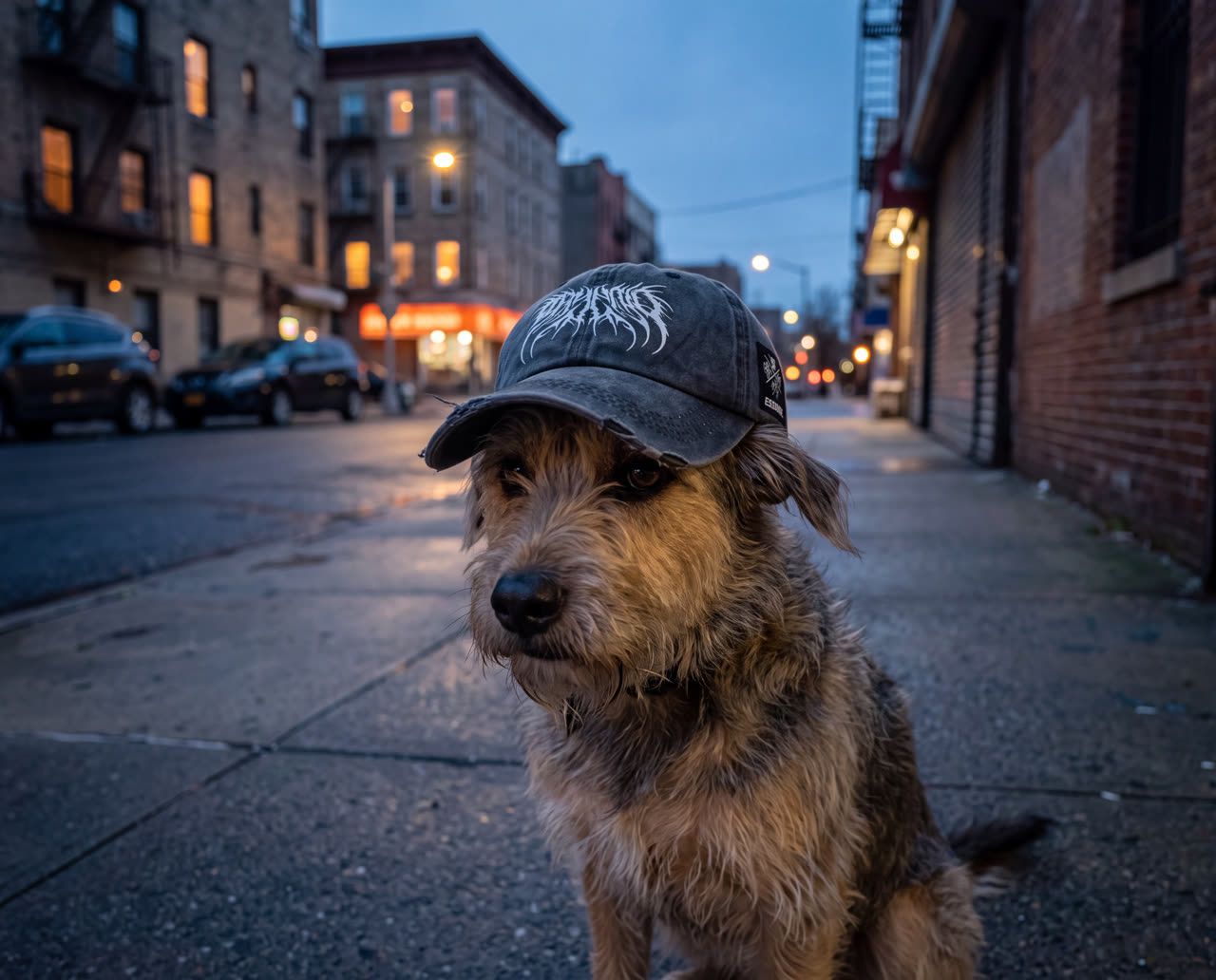
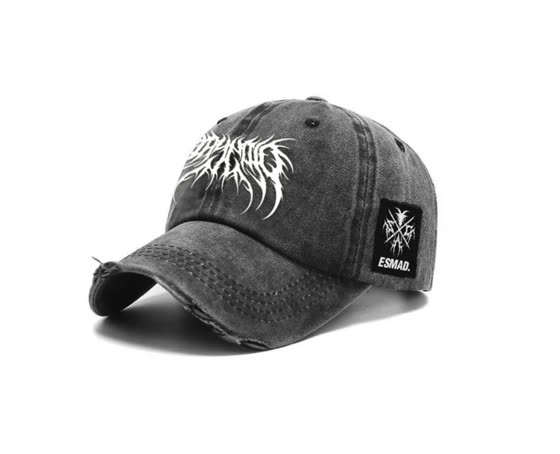
A dog wearing a cap @image1Canon C80 · ARRI Master Prime · 24mm · f/2
You need: An engine, set up once in Settings ▸ Engine.
Make your first picture
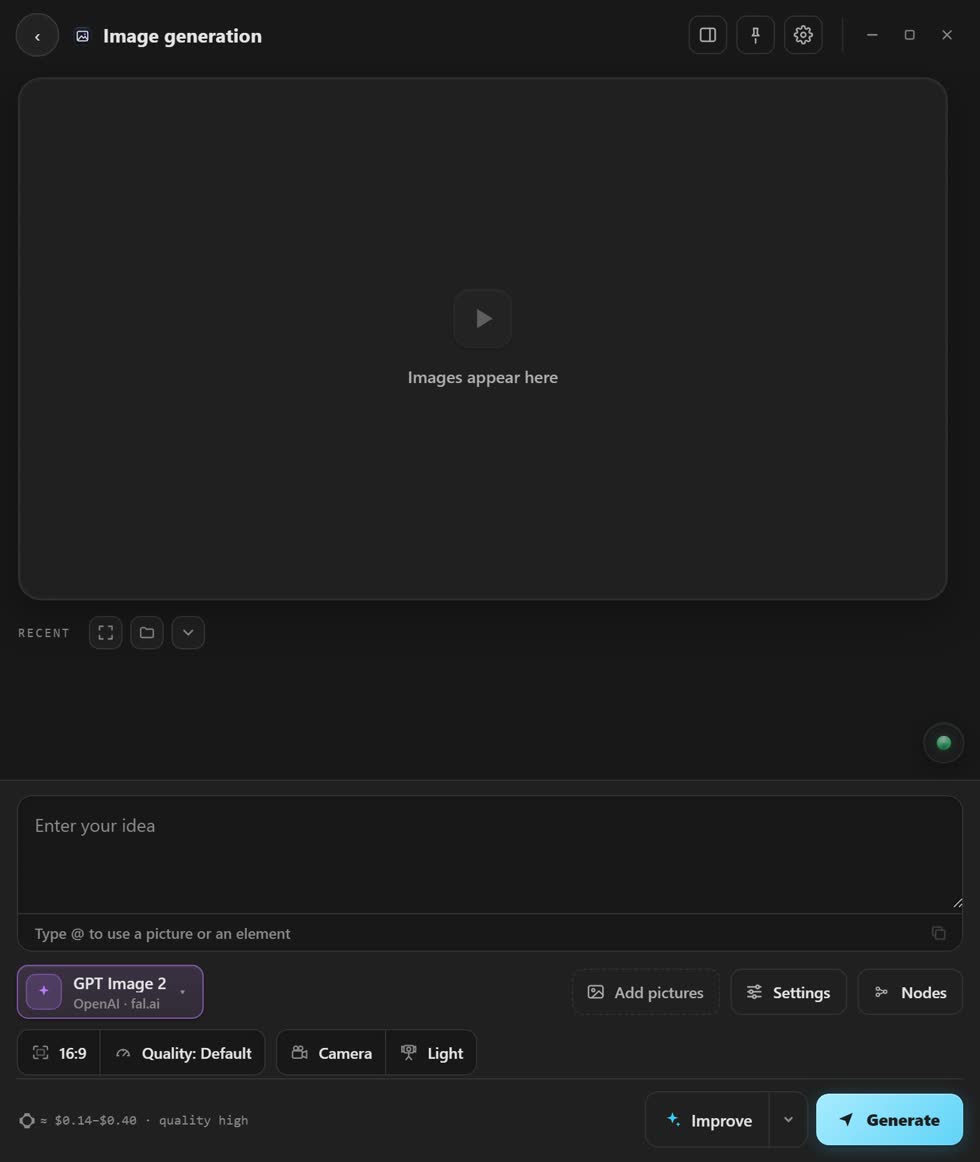
- Open Image generation. Tap it on the home screen.
- Pick a model. That is the AI that makes your picture.
- Add a picture if you have one. Press + Image. In your words, type @ to point at it. That is how the cap above got onto the dog.
- Write what you want. A few words is fine.
- Press Generate. Pick the shape and size first if you want.
When your picture is done
- Edit
- Brush over a part and say what to change.
- Angles
- See the same picture from other sides.
- Animate
- Turn the picture into a video clip.
Use the same person again
Save a person, an object or a place as an Element. Next time, type @ and its name in your words. The AI gets its photos by itself.
Stuck? Press the round button at the bottom right of the app and ask the assistant. It knows every screen. Or ask other editors in The VFX Room.