
Edit video
Change a clip that is already in your edit.
Your clipBlue Corvette
Drag the line to compare. A black Camaro became a blue Corvette, and the rest is the original clip.
Change a clip
- Put your playhead on the clip. Or pick a finished clip in Recent.
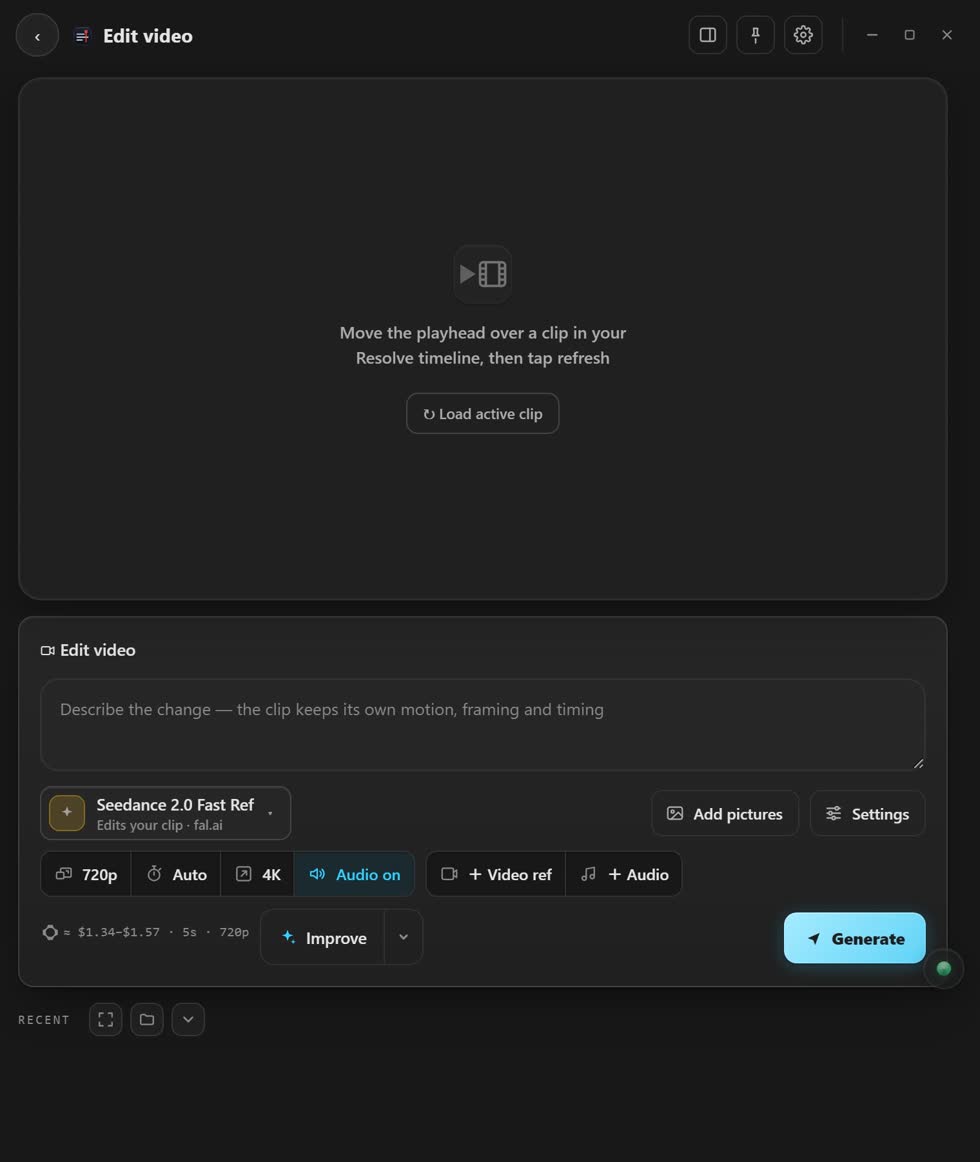
- Open Edit video. Your clip shows up in the player.
- Pick a tool. The list below says what each one does.
- Say what to change. Add pictures if they help.
- Press Generate. Your original clip stays safe.
The tools
- Edit video
- Changes the whole clip.
- Object
- Removes, replaces or changes one thing. The rest stays your original. Not on Higgsfield.
- Relight
- A new place, light and mood.
- Reframe
- Changes the shape, like wide to tall, without cutting off your subject.
- Upscale
- Makes a clip sharper, up toward 4K.
- Cutout
- Removes the background with no green screen. fal.ai only.
Remove something from a clip
- Click on it. Or draw a box around it, or type its name. Click and type need ComfyUI or Comfy Cloud.
- Press Find & track. An outline follows it through the clip.
- Press Remove. Then compare Before and After.
- Press Place over the original. On Resolve Studio it lands right on top of your clip.
Tip: press Pre-render clip first, so the result matches your colour grade.
Stuck? Press the round button at the bottom right of the app and ask the assistant. It knows every screen. Or ask other editors in The VFX Room.